

















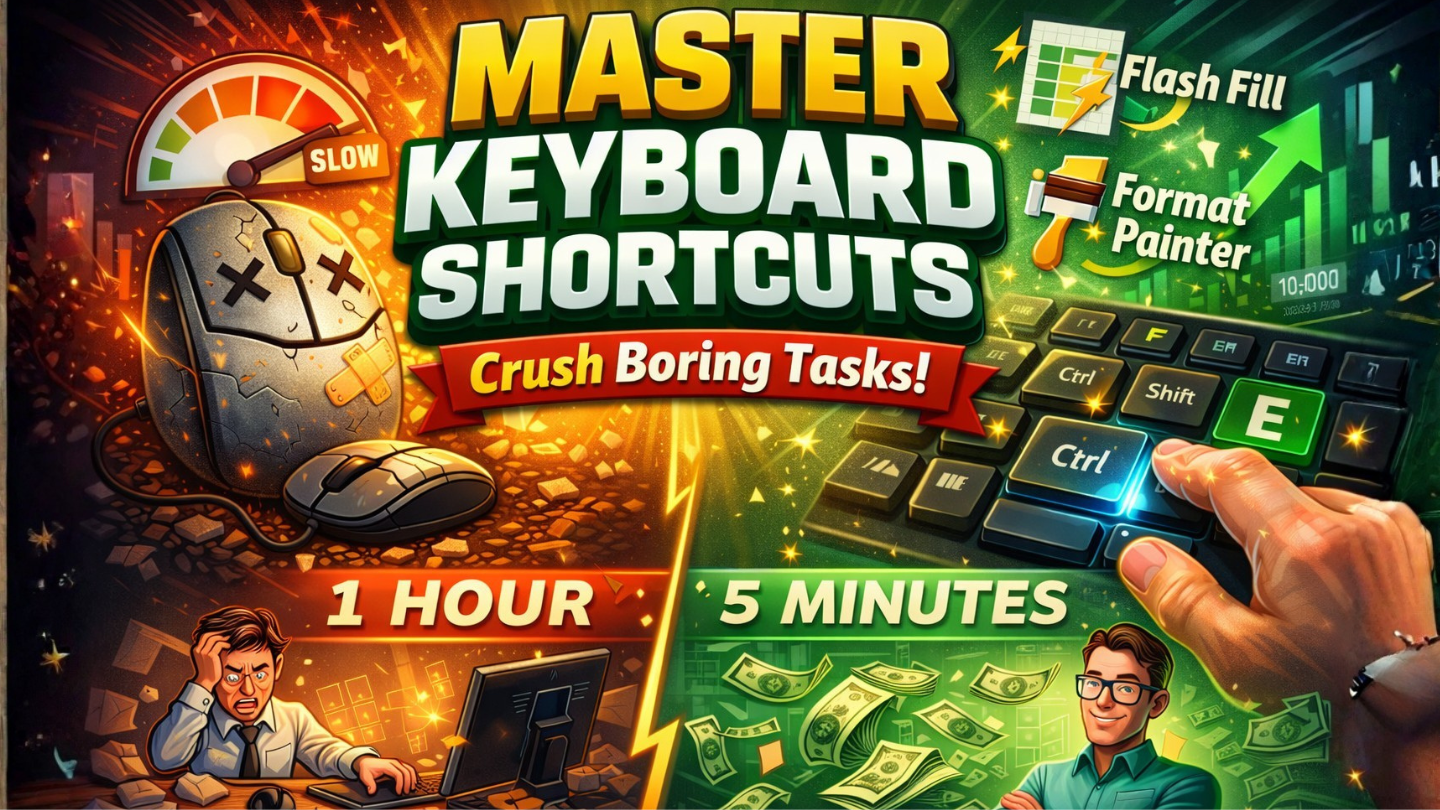
Stop reaching for your mouse. Learn how elite professionals use mouse-less navigation, Flash Fill, and the Format Painter to double their speed today.
Master Keyboard Shortcuts are the invisible line that separates a beginner from a data-crunching pro. If you’re in your twenties or thirties and working in any data-driven field, you know that time is your most valuable asset. Yet, many of us waste hours every week by constantly reaching for the mouse to navigate spreadsheets, format cells, or drag data. It feels small, but those seconds add up to massive productivity leaks. The goal of the modern high-performer is “mouse-less” productivity—a workflow where your fingers never leave the home row, and your data follows your commands instantly.
The Death of the Mouse: Why Speed Matters

Think about your current workflow. Every time you move your hand from the keys to the mouse, your brain pauses its analytical flow. Keyboard Shortcuts eliminate that friction. Whether you are navigating through 10,000 rows of data using Ctrl + Arrow Keys or selecting massive data ranges with Ctrl + Shift + Down, the speed is incomparable.
In the high-stakes world of global finance, tech, and marketing, speed isn’t just a flex; it’s a requirement. Mastering these shortcuts allows you to stay in “the zone,” focusing on what the data means rather than how to move it. When you become a mouse-less user, you aren’t just faster you are more accurate.
Beyond the Keys: Flash Fill and Format Painter
While Keyboard Shortcuts handle the movement, Excel has built-in features that act as “macro-shortcuts” for your brain. One of the most underrated is Flash Fill (Ctrl + E). If you have a column of full names and need to extract just the first names, you don’t need a complex formula. You just type the first one, hit the shortcut, and Excel’s AI detects the pattern and fills the rest instantly.
Then there is the Format Painter. We’ve all spent way too long trying to make one table look exactly like another. By double-clicking the Format Painter, you can “lock” a style and apply it to multiple ranges across your workbook with a single click. These features, combined with a deep knowledge of Keyboard Shortcuts, transform a two-hour formatting nightmare into a five-minute breeze.
Automating Your Career Value
Why should a 25-year-old care about being 30% faster at Excel? Because in a global job market, efficiency is a competitive advantage. When you master Keyboard Shortcuts, you become the person who finishes the “impossible” report by lunch. You become the go-to expert for high-pressure projects where every second counts.
Employers aren’t just looking for someone who knows Excel; they want someone who can manipulate data at the speed of thought. By showing that you can navigate, clean, and format data without a mouse, you signal that you are a high-level operator who values efficiency and attention to detail.
| Action | Traditional Mouse Way | The Pro Shortcut Way |
| Select All Data | Clicking and dragging down. | Ctrl + A |
| Add/Remove Filter | Navigating to Data > Filter. | Ctrl + Shift + L |
| Autosum Numbers | Finding the ∑ button in Home. | Alt + = |
| Extract Patterns | Writing complex MID/LEFT formulas. | Flash Fill (Ctrl + E) |
Your Hands, Your Rules
Mastering Keyboard Shortcuts isn’t about memorizing 500 keys on day one. It’s about picking three new shortcuts every week and forcing yourself to use them until they become muscle memory. Start by ditching your mouse for one hour a day.
The transition to mouse-less productivity is the single best investment you can make in your daily workflow. Stop fighting your software and start commanding it. Once you feel the flow of a truly keyboard-driven workspace, you’ll never want to go back to the slow, clicking past. Your career moves fast—make sure your fingers move faster.
For more updates – Today News










+ There are no comments
Add yours